
Animated code, terminals and architecture diagrams for technical videos
CoProd Premium adds animated code, terminal sessions, architecture diagrams and charts to technical videos made from your own recordings. The Director plans each graphic from what you said, and checked-in templates render it into the cut, so the code and the diagrams appear where your narration needs them.
It suits engineers and developer advocates explaining a system, product teams walking through a feature, and anyone teaching with code on screen. You bring narrated screen recordings and talking-head takes; CoProd picks the story and places the graphics.
See a real recording and edited opening · Technical explainers in CoProd · Build the free edition
What the graphics look like
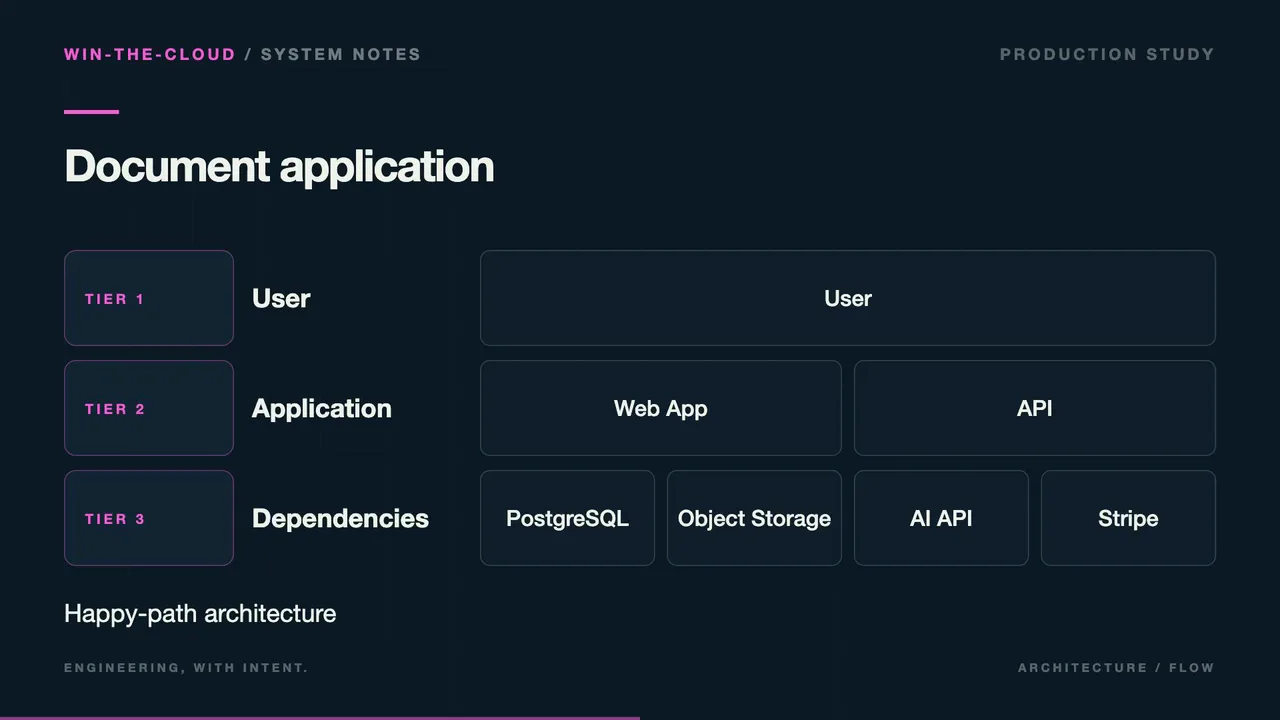
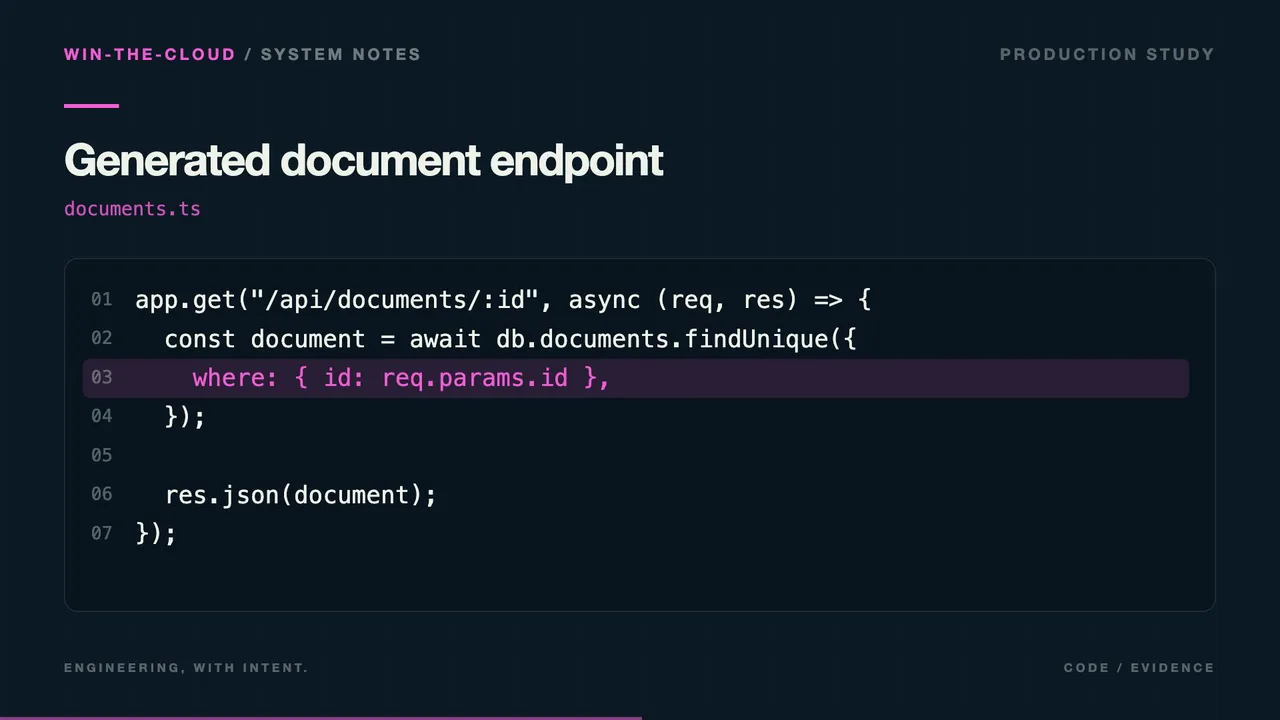
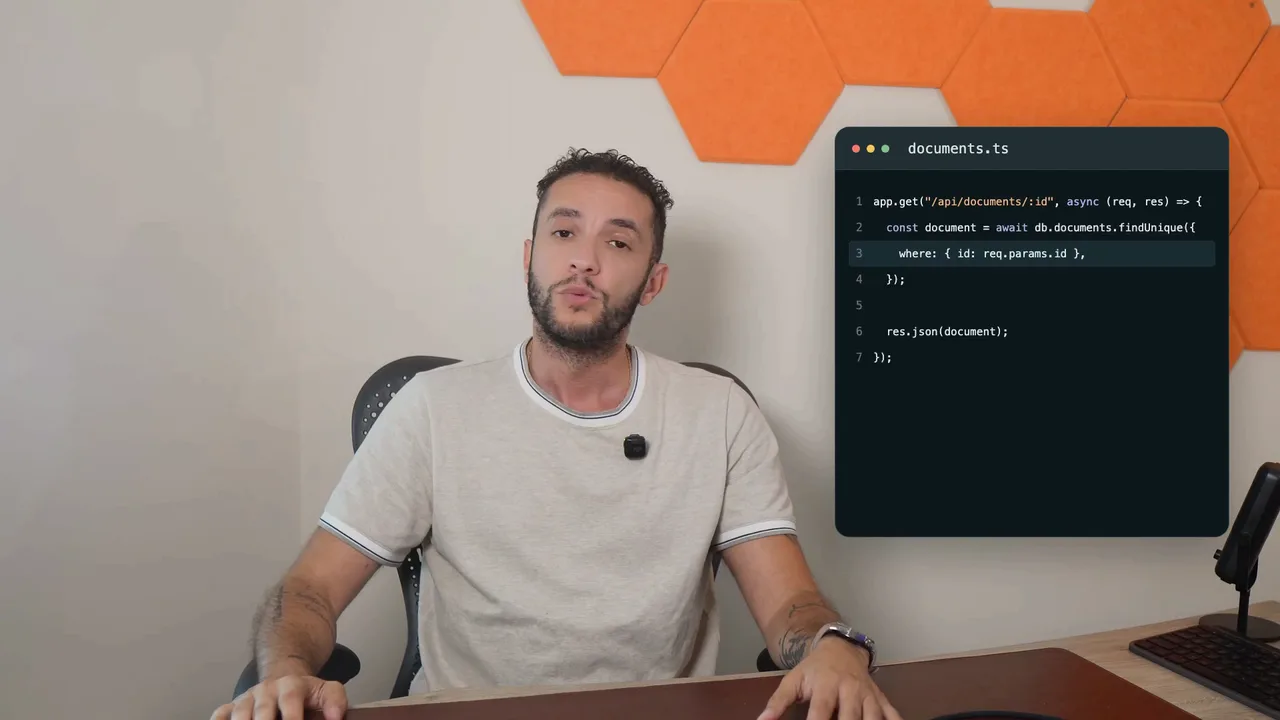
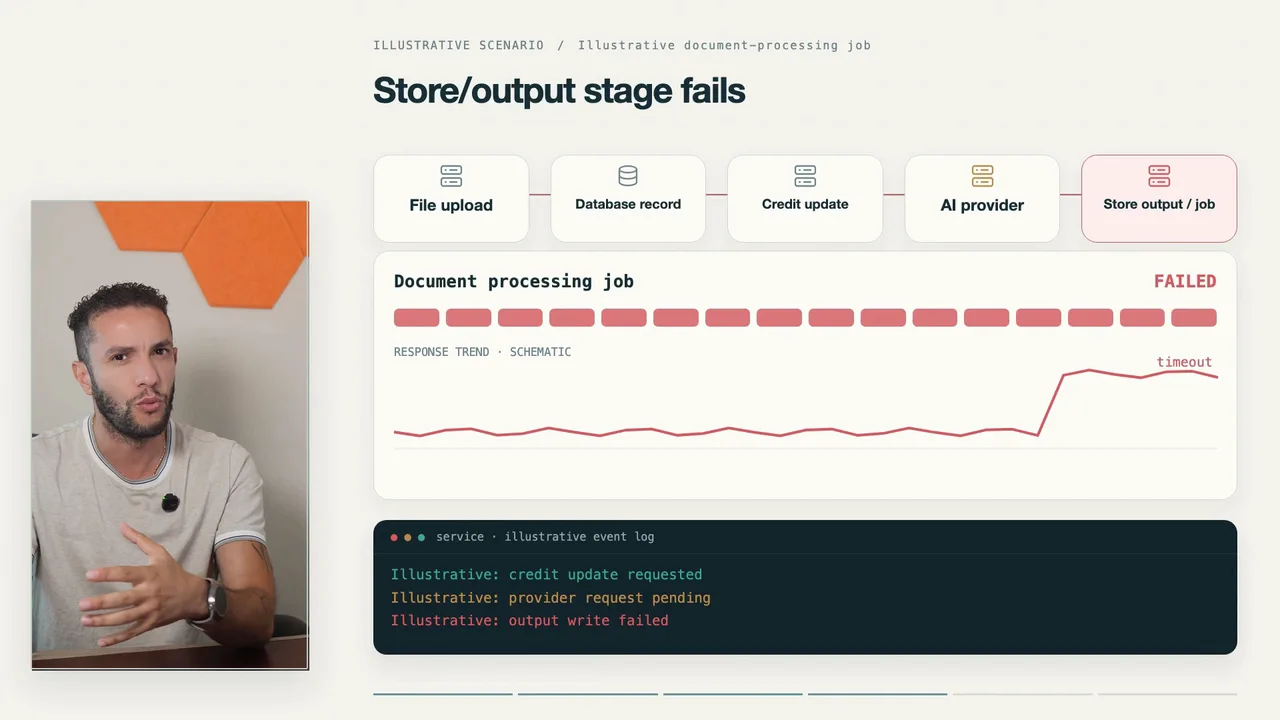
These frames come from the creator’s own engineering explainer, “Your AI-generated app is not production ready”, rendered by CoProd. That project was made from an approved script; the graphics work the same way from raw footage.
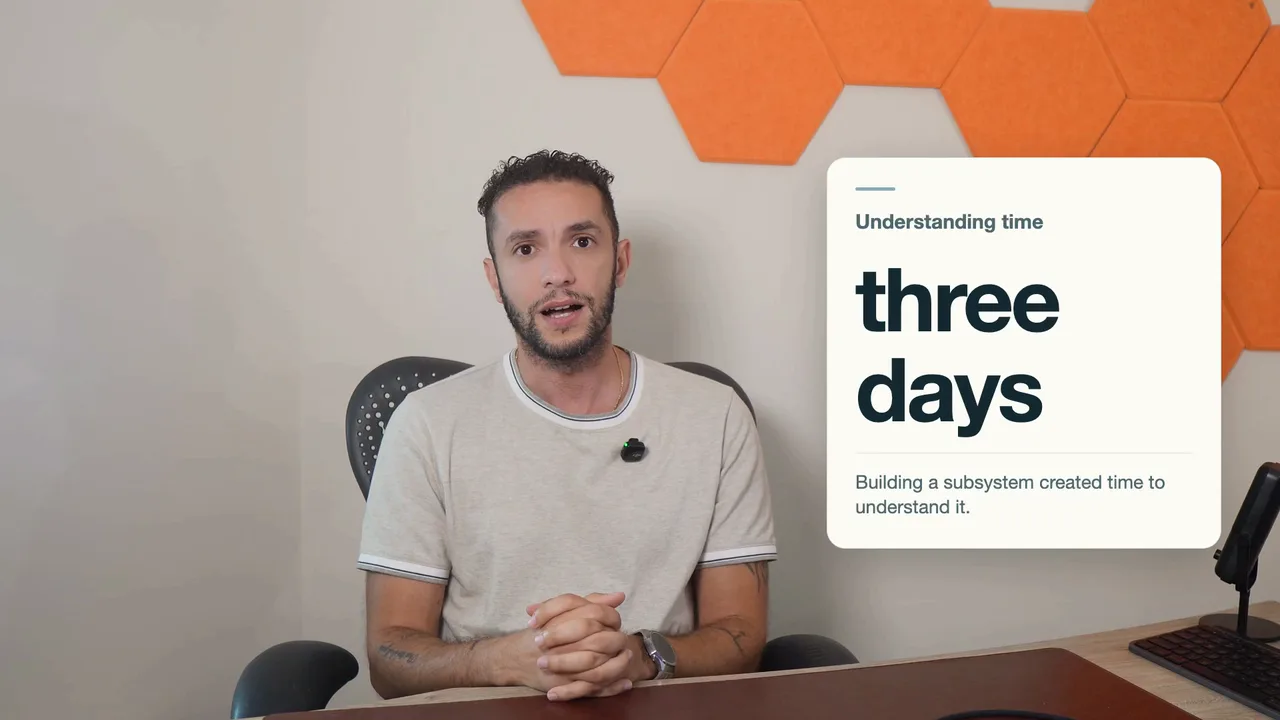
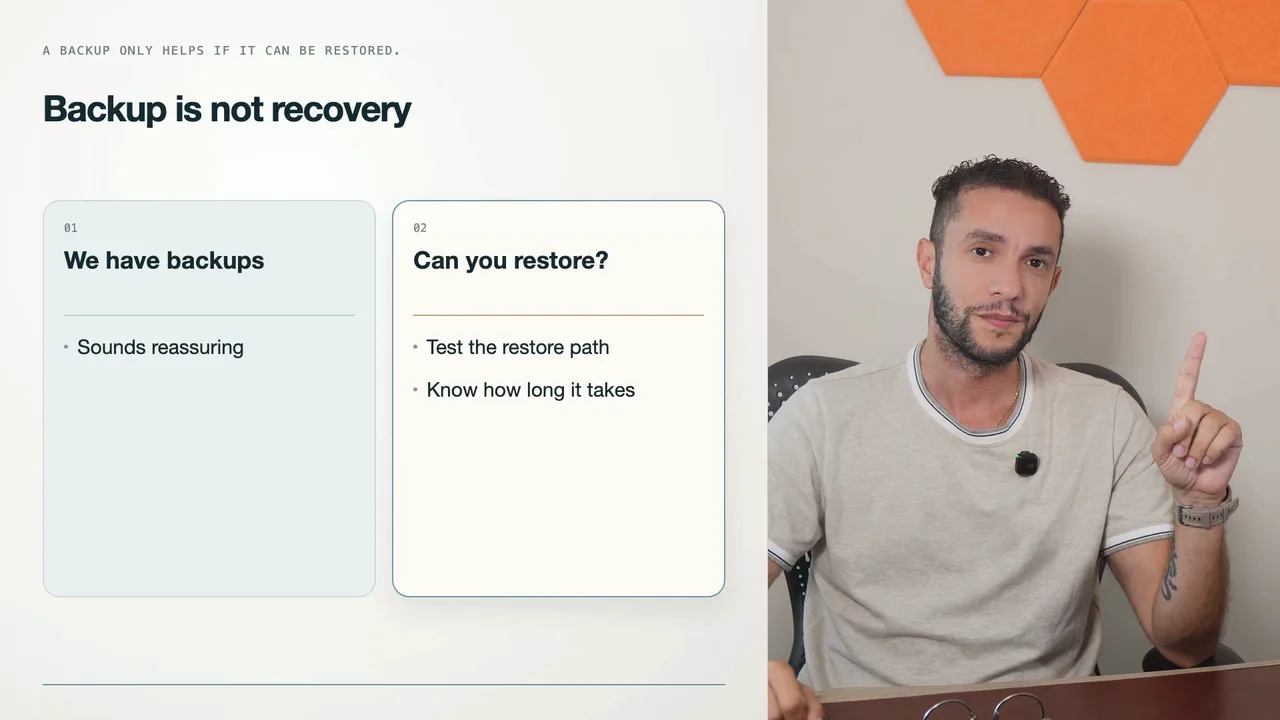
Every template
- Full-frame graphics: chapter titles, callouts, quotes, architecture flows, architecture diagrams, request flows, code reveals, Terminal sessions, code diffs (CodeDiff), metric charts and failure animations.
- Beside you: comparison boards, step sequences, keyword highlights, metric spotlights, code panels and tool cards with your own logos.
- Across several scenes: system walkthroughs, concurrent operations, incident notifications and resource inventories.
- Motion compositions: 2D animations the Director designs as validated data, rendered by checked-in code.
Terminal sessions, code diffs, request flows and metric charts weren’t used in this project, so there are no frames of them here.
How a graphic gets into the cut
- You record and narrate. Drop your screen recordings and camera takes into CoProd Premium; it transcribes them and picks the story from what you said.
- The Director proposes graphics. As part of the edit plan, it chooses a template for each scene that needs one and fills in its parameters: the boxes of a diagram, the lines of code, the values of a chart.
- Code checks the plan. Validation rejects invalid timing, references and parameters before anything renders. The Director returns data, never code to run.
- Checked-in templates render it. Remotion renders each graphic from the fixed templates in the app, with your three brand colors, font and logos from your creator profile.
In your editor
When you finish in DaVinci Resolve or Final Cut Pro, the graphics arrive as rendered clips, each as its own clip on the timeline, not as editable motion graphics. Change a graphic in CoProd and export again. See an AI rough cut you finish in DaVinci Resolve.
What it doesn’t do
There are no lower thirds, end screens or intro bumpers, and no editable motion-graphics templates in your editor. It doesn’t add zoom or cursor effects to screen recordings, and output is 16:9 at 1080p.
What you need
- CoProd Premium on an Apple Silicon Mac with macOS 14 or later.
- An OpenAI key for AI direction, which plans the graphics. Paid AI usage is billed separately by the provider; without a key, the offline Director is clearly labelled.
Product details checked against CoProd Premium 2026.54.0 on October 20, 2026.